
新建Markdown模板
# 配置
因为现在typro需要收费了,所以我在电脑上写博客现在都是用VScode+markdown插件,这里配置废话模板当然也是在VScode上进行配置
打开VScode的settings.json,添加
"[markdown]":  {
        "editor.quickSuggestions": true
    }
1
2
3
4
2
3
4
 (opens new window)
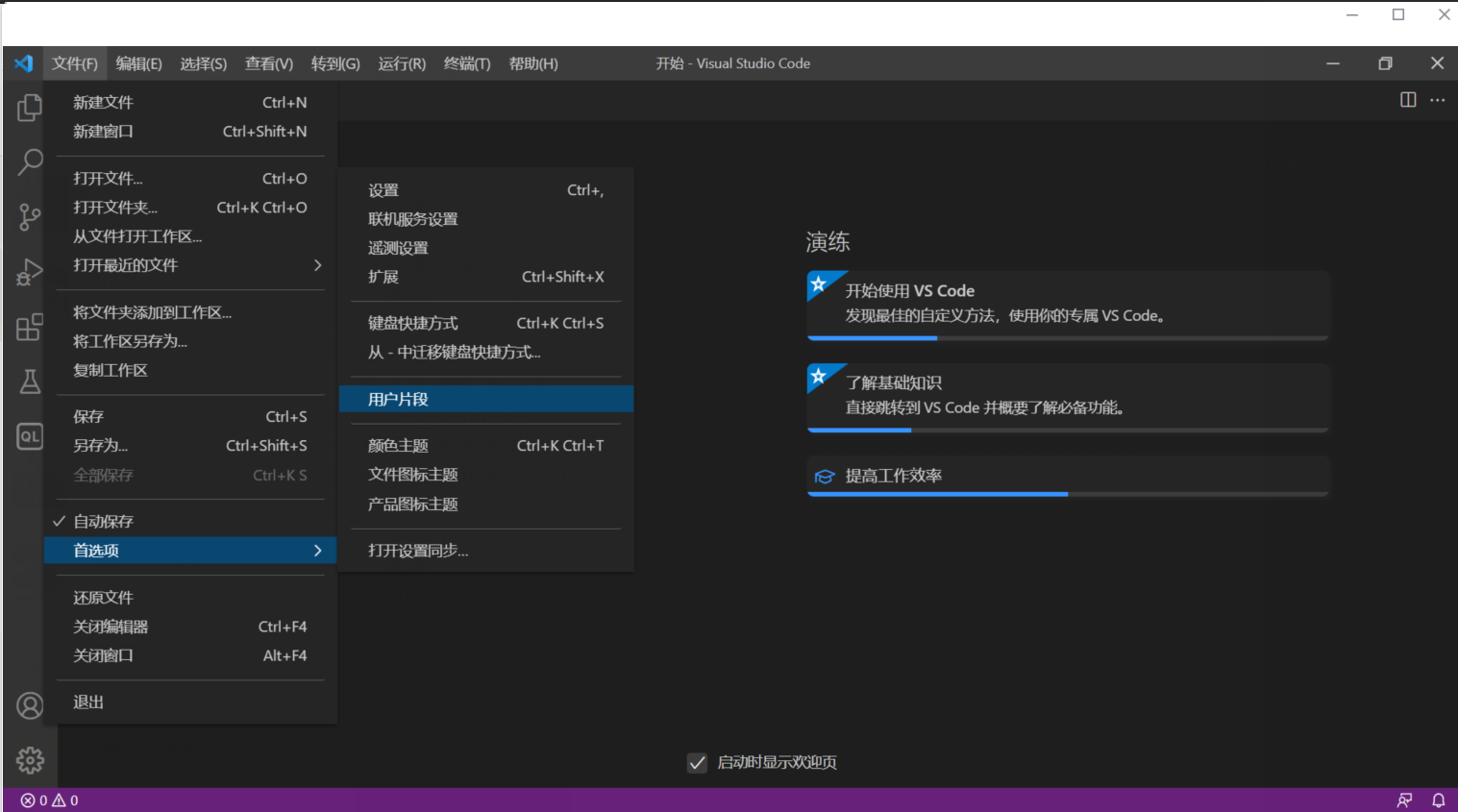
保存之后打开 文件->首选项 -> 用户片段
 (opens new window)
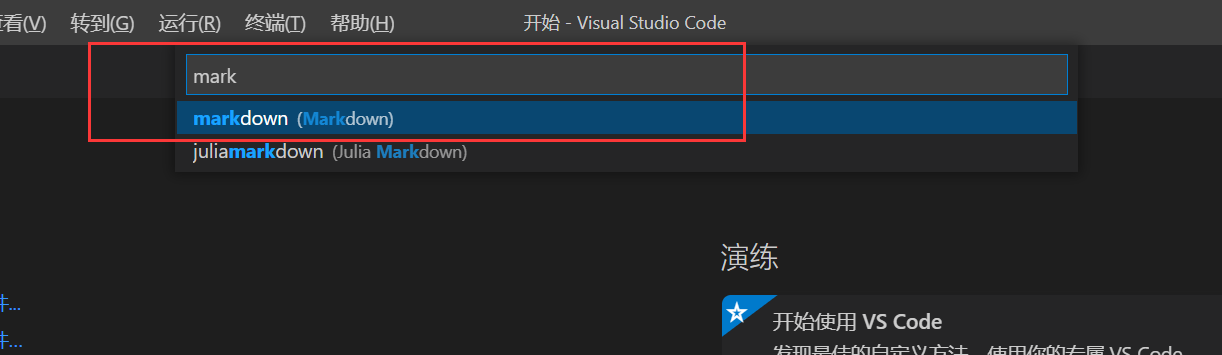
输入并选择markdown
 (opens new window)
这里已经给了我们一个example,在body里面编写我们的模板
 (opens new window)
比如这里我编写的就是
{
// Place your snippets for markdown here. Each snippet is defined under a snippet name and has a prefix, body and
// description. The prefix is what is used to trigger the snippet and the body will be expanded and inserted. Possible variables are:
// $1, $2 for tab stops, $0 for the final cursor position, and ${1:label}, ${2:another} for placeholders. Placeholders with the
// same ids are connected.
// Example:
"Print to console": {
"prefix": "end",
"body": [
"## END ",
" ",
"建了一个微信的安全交流群,欢迎添加我微信备注`进群`,一起来聊天吹水哇,以及一个会发布安全相关内容的公众号,欢迎关注 :)",
" ",
"<div>",
"    <img  alt=\"GIF\" src=\"https://springbird.oss-cn-beijing.aliyuncs.com/img/mmqrcode1632325540724.png\"  width=\"280px\" />",
"    <img  alt=\"GIF\" src=\"https://springbird.oss-cn-beijing.aliyuncs.com/img/qrcode_for_gh_cead8e1080d6_344.jpg\"  width=\"280px\" />",
"</div>"
],
"description": "end output"
}
}
折叠
1
2
3
4
5
6
7
8
9
10
11
12
13
14
15
16
17
18
19
20
21
22
2
3
4
5
6
7
8
9
10
11
12
13
14
15
16
17
18
19
20
21
22
保存即可
# 效果
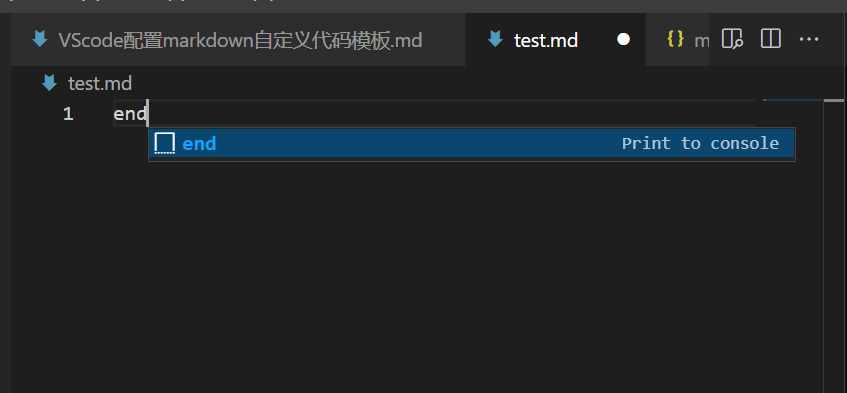
创建一个新的markdown文件,输入 上面prefix对应的内容,这里我对应的就是end
 (opens new window)
可以看到我输入end之后VScode出现了提示,回车或者tab即可
 (opens new window)
模板内容成功生成
# 参考链接
# END
https://www.cnblogs.com/Cl0ud/p/15805571.html
← 前言 RT-Thread 问题 →